

LINE Official Account Messaging API: What Non-Developers Need to Know
Published
If you run a business on LINE, you have probably heard the phrase “the Messaging API” from an agency, a chatbot vendor, or a developer — usually right before a quote or a feature you did not fully follow. The term sounds like something only an engineer should care about. It is not.
The LINE Messaging API is the piece of the LINE Official Account ecosystem that decides whether your account is a static profile or a working communication channel — auto-replies, chatbots, order updates, and in-thread translation all run through it. You do not need to write code to benefit from it, but you do need to understand what it is so you can brief a vendor, scope a project, or simply know what is possible. This guide explains the Messaging API in plain English: what it is, what it unlocks, what it costs, and where third-party tools fit. For the full picture of LINE Official Accounts themselves, start with our complete guide to LINE Official Account for US businesses.
What the LINE Messaging API Actually Is
An API — application programming interface — is simply a defined way for two pieces of software to talk to each other. The LINE Messaging API is the defined way for external software to send and receive messages through your LINE Official Account.
Put plainly: your LINE Official Account is the channel. The Messaging API is the doorway that lets other software step into that channel and act on your behalf. When a customer sends your account a message, the Messaging API can hand that message to a program you (or a vendor) control. When that program decides on a response, the Messaging API delivers it back into the chat. The customer never sees any of this plumbing — they just see your Official Account replying.
Three things are worth knowing as a non-developer:
- A LINE Official Account is required. The Messaging API does not exist on its own. It is a capability you switch on for an account you already have.
- It works both directions. It can send messages (push updates, replies, broadcasts) and receive them (a “webhook” delivers incoming messages and events to your software in real time).
- It is the foundation every LINE bot is built on. Every chatbot, auto-responder, and translation bot you have seen inside a LINE chat is using the Messaging API underneath. There is no separate “bot product” — bots are Messaging API applications.
If you remember one sentence, make it this one: the Messaging API is how software talks to a LINE Official Account.
Messaging API vs the LINE OA Manager: What You Get Without Code
Here is the part most non-developers get wrong. They assume the Messaging API and the everyday LINE OA Manager dashboard are the same thing, or that one replaces the other. They are two layers, and most businesses use both.
The LINE OA Manager is the no-code dashboard. From it, without touching the Messaging API directly, you can already broadcast messages, build a rich menu, set keyword-triggered auto-replies, schedule greetings for new followers, and read basic analytics. For a café, a clinic, or a small retailer, the OA Manager alone covers a great deal.
The Messaging API is the layer underneath, exposed for software. You reach for it when the no-code tools run out of road — when you need responses that depend on live data (an order status, an appointment slot, a shipment ETA), when you want to connect LINE to your CRM or booking system, or when you want behaviour the dashboard simply does not offer, such as translating every message in a group thread.
A useful way to think about the boundary: the OA Manager handles fixed behaviour you can set and forget. The Messaging API handles dynamic behaviour that reacts to something — a database, an external service, or the specific content of an incoming message. You do not have to choose one. A typical setup runs scheduled broadcasts and the rich menu through the OA Manager, while a Messaging API application handles the smart, reactive parts.
| Capability | LINE OA Manager | Messaging API |
|---|---|---|
| What it is | No-code dashboard | Software layer for tools and developers |
| Who operates it | You, in a browser | Software (yours or a vendor’s) |
| Best for | Fixed, set-and-forget behaviour | Dynamic, reactive behaviour |
| Broadcasts and scheduled greetings | Yes | Yes |
| Rich menu | Yes | Yes |
| Keyword auto-replies | Yes | Yes, and multi-step |
| Responses using live data (orders, bookings) | No | Yes |
| CRM and external-system integration | No | Yes |
| In-thread group translation | No | Yes, via a bot like Echonora |
| Coding required | None | None with a ready-made tool; yes for custom builds |
What the Messaging API Lets Your Business Do
Once software can send and receive on your behalf, a long list of practical use cases opens up. The most common ones for non-technical businesses:
- Smart auto-replies and chatbots. Beyond fixed keyword responses, a bot can ask a question, remember the answer, and route the conversation — a self-service FAQ, a booking assistant, a lead-qualification flow.
- Transactional notifications. Order confirmations, shipping updates, appointment reminders, and payment receipts pushed into the customer’s chat automatically, triggered by your own systems.
- CRM and tool integration. Inbound LINE inquiries logged straight into HubSpot, Salesforce, or a help desk; a new booking in your scheduling tool firing a LINE confirmation.
- Rich, interactive messages. Buttons, carousels, and structured cards that let a customer pick an option instead of typing.
- In-thread translation. A bot that reads every message in a group chat and posts a translation back into the same thread, so a mixed-language team or supplier group can all follow one conversation.
That last use case is worth a closer look, because it is one of the clearest examples of the Messaging API doing something the no-code dashboard never could.
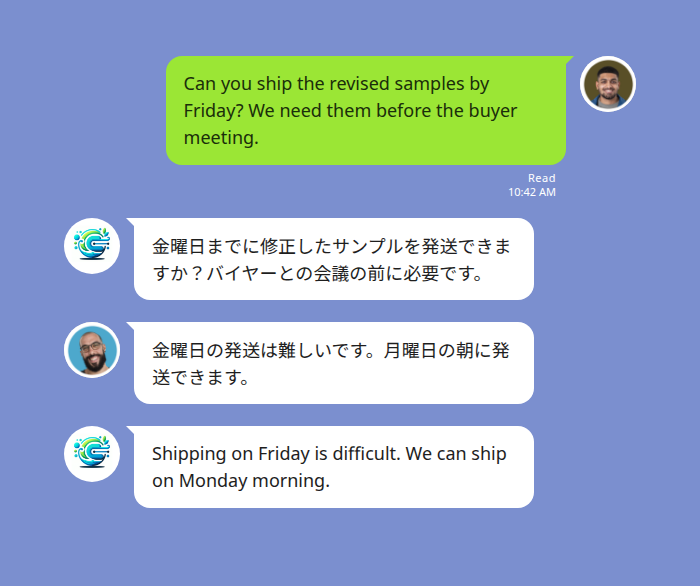
A US buyer and a Japanese supplier coordinate a sample shipment in one LINE group — every message translated in-thread by a Messaging API application.
In the exchange above, a US buyer and a Japanese supplier are coordinating a sample shipment in a single LINE group. Neither person switched apps, copied text into a translator, or waited on a bilingual colleague. A Messaging API application read each message as it arrived and posted the translation straight back into the thread. From the participants’ point of view there is no “API” — there is just a chat that happens to work in both languages.
How Translation Bots Use the Messaging API
Translation is a good lens for understanding the Messaging API, because it shows every part of the doorway working at once.
When a translation bot is added to a LINE group, here is the round trip: someone posts a message, LINE’s webhook delivers that message to the bot’s software, the software translates it, and the Messaging API posts the result back into the same thread for everyone to read. Voice notes follow the same path — the audio is transcribed, then translated, then posted as text. All of it happens in seconds, and none of it is visible to the people chatting. They simply see a thread that everyone can read.
Echonora is one such tool. It is a translation bot built on the LINE Messaging API, designed for groups where people speak different first languages — cross-border supplier chats, mixed-nationality teams, multilingual families. You add it to a LINE group the same way you add any member, send one activation message naming the languages — for example @Echonora English and Japanese — and from that point every text and voice message is translated in-thread. It covers 180+ languages, and a group can run up to five at once.
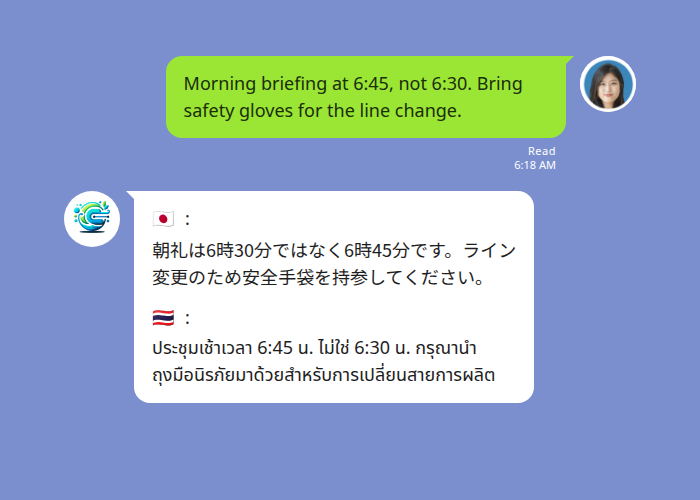
A three-language LINE group: one English shift instruction delivered to a Japanese and a Thai operator, each reading it in their own language.
The example above shows a three-language group: an English shift instruction fanned out to a Japanese and a Thai operator, each reading it in their own language, with a country flag marking each translation so nobody has to guess which line is theirs. For three or more languages, the activation command simply lists them — @Echonora English, Japanese, and Thai. You can see the full set of supported languages and the exact activation syntax in the list of supported language pairs.
The point for this guide is not the translation itself — it is how it is delivered. Reading every group message and replying into the thread is precisely the kind of dynamic, reactive behaviour the Messaging API exists to enable, and exactly what the no-code OA Manager cannot do on its own.
What the Messaging API Costs
The most common question from non-developers is the most reassuring to answer: using the Messaging API does not add a separate fee. It is included with your LINE Official Account. Switching it on costs nothing.
What you do need to keep an eye on is your LINE Official Account’s own message allowance, because the Messaging API sends through that same allowance. The free Communication Plan includes a modest monthly quota of broadcast and push messages — messages your account initiates. Replies to a customer who messaged you first are not capped the same way. If your outbound volume grows past the free quota, you move up to a paid LINE plan (Light, Standard, Premium), which raises the included volume and charges per message beyond it.
Two cost notes that catch people out:
- The API is free; the messages it sends are metered. You are not billed for “using the API” — you are billed, via your LINE plan, for the push and broadcast messages that flow through it once you exceed the free quota.
- Third-party tools price separately. A chatbot platform, a CRM connector, or a translation bot built on the Messaging API sets its own pricing, independent of LINE. Echonora, for instance, has a free plan covering 20 messages a day per group — no credit card, no expiry — with monthly and annual upgrades for unlimited translation; current pricing is on echonora.com. When you budget for a LINE project, count both layers: your LINE plan, and any third-party tool you add on top.
For a side-by-side on how this messaging-cost model compares to the alternative, see our comparison of LINE Official Account and WhatsApp Business.
Do You Actually Need a Developer?
This is the decision the whole guide builds toward. The honest answer: it depends on which of three paths you are on.
Path 1 — No-code, no developer. If your needs are covered by broadcasts, a rich menu, scheduled greetings, and keyword auto-replies, you may never touch the Messaging API directly. The LINE OA Manager is enough. Most small local businesses live here comfortably.
Path 2 — A third-party tool, still no developer. This is the path most businesses underestimate. A large catalog of ready-made tools is already built on the Messaging API — chatbot builders, CRM connectors, and translation bots like Echonora. You install them, configure them through their own interface, and never see a line of code. You get Messaging-API-powered behaviour without hiring anyone. If a tool already does what you need, this is almost always the fastest and cheapest route.
Path 3 — Custom development. You need a developer when your requirements are genuinely specific — a bot wired into a proprietary system, an unusual workflow, logic no off-the-shelf tool offers. Here you either hire in-house or engage an agency. The Messaging API is well documented, so this is routine work for a competent developer; the cost is in the custom logic, not the LINE integration itself.
A practical sequence: first check whether the LINE OA Manager already covers you. If not, look for an existing third-party tool. Only commission custom development when the first two paths genuinely fall short. Many businesses jump straight to “we need to build something” and spend on a developer for a capability they could have switched on the same afternoon.
Start Using Echonora — Break Language Barriers
Supports 180+ languages — real-time text and voice translation right inside your LINE group, no coding required
Frequently Asked Questions
Is the LINE Messaging API free?
Enabling it costs nothing — it is included with your LINE Official Account. What is metered is your account’s message allowance: push and broadcast messages count against your LINE plan’s quota, and you move to a paid plan if you exceed the free tier. Replies to customers who message you first are not capped the same way.
Do I need a LINE Official Account to use the Messaging API?
Yes. The Messaging API is a capability of a LINE Official Account, not a standalone product. You create the Official Account first, then enable the Messaging API for it.
Can I use the Messaging API without coding?
Often, yes. Many tools — chatbot builders, CRM connectors, translation bots — are already built on the Messaging API and are configured through their own no-code interfaces. You get the capability without writing or hiring for code.
What is the difference between the LINE OA Manager and the Messaging API?
The OA Manager is the no-code dashboard for fixed behaviour: broadcasts, rich menus, keyword auto-replies. The Messaging API is the software layer for dynamic, reactive behaviour: live-data responses, system integrations, and in-thread translation. Most businesses use both.
How do translation bots fit in?
A translation bot is a Messaging API application. It receives each group message through LINE’s webhook, translates it, and posts the result back into the thread. Echonora works this way — added to a LINE group, it translates every text and voice message across 180+ languages so everyone reads the conversation in their own language.
Does using the Messaging API change the experience for my customers?
No. Customers see your LINE Official Account behaving normally — replying, sending updates, translating. The Messaging API is invisible plumbing; the people in the chat never interact with it directly.
Turn your LINE group multilingual in one message
Add Echonora, name your languages, and every text and voice message is translated in-thread. Free plan: 20 messages a day, no credit card, no expiry.