

LINE Official Account: The Complete Guide for US Businesses [2026]
Published
If your business works with customers, suppliers, or staff in Japan, Taiwan, Thailand, or Southeast Asia, you have probably encountered LINE. With over 200 million active users across Asia, LINE is the dominant messaging platform in these markets — and a LINE Official Account is how businesses tap into that user base.
This guide walks you through everything a US-based business needs to know about LINE Official Accounts: what they are, how to set one up, what features matter, how much it costs, and how to solve the language barrier that makes cross-border LINE communication difficult.
What Is a LINE Official Account
A LINE Official Account (LINE OA) is a business profile on the LINE messaging platform. Think of it as LINE’s equivalent of a Facebook Business Page or a WhatsApp Business account — but built for markets where LINE is the default communication tool.
Unlike a personal LINE account, a LINE Official Account gives you business-grade tools:
- Broadcast messaging to all followers at once
- 1:1 chat with customers or staff
- Rich menus — persistent button panels at the bottom of the chat screen that link to your website, booking system, or product catalog
- Auto-reply and chatbot capabilities built into the platform
- Analytics dashboard showing message delivery, open rates, and follower growth
- API access via the LINE Messaging API for custom integrations
When someone adds your LINE Official Account as a friend, they can message you directly — and you can message them back, send broadcast updates, and build an ongoing communication channel that lives inside the app they already use every day.
LINE Official Accounts are free to create, and the free tier includes up to 200 broadcast messages per month. For businesses that need higher volume, paid plans scale from there.
Who Uses LINE OA in the US
LINE is not mainstream in the United States the way it is in Tokyo or Taipei. But for US businesses that operate across borders, LINE is often the only practical way to reach key people. The most common use cases in the US fall into a few distinct categories.
Restaurants and hospitality. Japanese, Thai, and Taiwanese restaurants in cities like Los Angeles, New York, and San Francisco often have kitchen and service staff who use LINE as their primary messaging app. A LINE OA group lets the owner coordinate schedules, share daily specials, and manage shift changes — all in the app staff already check every morning.
Import/export and procurement. US companies sourcing products from factories in Thailand, Vietnam, Japan, or Taiwan frequently use LINE to communicate with suppliers. Email is slow; WhatsApp does not have adoption in Japan or Taiwan. LINE is where the suppliers already are.
Staffing and labor agencies. Agencies that place workers from Asia in US-based roles (hospitality, agriculture, healthcare, construction) use LINE OA to onboard new hires, share orientation materials, and manage day-to-day coordination.
Education and travel. Study-abroad consultants, language schools, and travel agencies serving Asian markets use LINE OA as their primary customer communication channel — because their students and clients are already on LINE.
Tech companies with Asian partners. SaaS companies, game studios, and e-commerce platforms with development teams or distribution partners in LINE-dominant markets use LINE OA groups for project coordination and stakeholder updates.
How to Create a LINE Official Account
Setting up a LINE Official Account is free and takes about 10 minutes. Here is the step-by-step process.
Step 1: Go to the LINE Business portal. Visit the LINE Official Account Manager at manager.line.biz and sign up using your existing LINE personal account, or create a new LINE account if you do not have one.
Step 2: Create your business profile. Enter your business name, category, and a profile description. Upload a profile image — this is what users see when they add you as a friend or see your messages in group chats.
Step 3: Configure your greeting message. LINE OA lets you set up an automatic greeting that new friends receive when they add your account. Use this to introduce your business and explain what they can expect from your LINE channel.
Step 4: Set up a rich menu (optional but recommended). A rich menu is a persistent panel of buttons at the bottom of the chat screen. You can link buttons to your website, booking page, product catalog, or FAQ. This turns your LINE OA into a lightweight mobile app.
Step 5: Get your friend-add link. LINE generates a unique URL (format: lin.ee/xxxxx) that anyone can click to add your account as a friend. Share this link on your website, email signature, business cards, and social media to grow your follower base.
Step 6: Invite your LINE OA into group chats. For internal team communication, create a LINE group, add your team members, and invite your LINE Official Account into the group. The OA can now participate in the group conversation — and you can integrate tools like translation bots to bridge language gaps.
Verification (optional). LINE offers account verification for businesses that want a verified badge. Verified accounts appear in LINE search results and gain access to additional features. The verification process requires submitting business documentation and is reviewed by LINE.
LINE OA Features for Business
LINE Official Accounts come with a set of features designed for business communication. Here are the ones that matter most for US businesses operating across borders.
Broadcast messaging. Send a single message to all your followers at once. Useful for announcements, promotions, or updates. The free plan includes 200 broadcast messages per month; paid plans increase the limit.
1:1 chat. Respond to individual customer or staff messages directly. This is how most pre-sales inquiries and support conversations happen on LINE.
Rich menus. A customizable button grid that stays pinned at the bottom of the chat. Businesses use rich menus to link to booking forms, product pages, FAQs, and payment links — turning the LINE chat into a self-service hub.
Auto-reply. Set keyword-triggered automatic responses so common questions get answered instantly. For example, a message containing “hours” can trigger a reply with your business hours and location.
Chatbot integration. The LINE Messaging API allows you to connect external chatbots to your LINE OA. Businesses use this for automated customer service, order tracking, appointment booking, and more.
Analytics. The LINE OA Manager dashboard shows follower growth, message delivery rates, and engagement metrics. This helps you understand which broadcasts drive action and which fall flat.
LINE VOOM (timeline). Post updates to a feed that your followers can browse, like, and share — similar to Instagram Stories or Facebook posts, but within LINE.
LINE OA Pricing and Plans
LINE Official Accounts are free to create. The pricing tiers determine how many broadcast messages you can send per month.
| Plan | Monthly cost | Broadcast messages included |
|---|---|---|
| Free | $0 | 200 messages/month |
| Light | ~$5/month | 5,000 messages/month |
| Standard | ~$15/month | 30,000 messages/month |
Pricing may vary by region and is subject to change. Check the LINE Official Account Manager for current rates.
Key points about LINE OA pricing:
- 1:1 chat is free and unlimited on all plans. The broadcast message limit only applies to mass sends.
- Group chat participation is free. Your LINE OA can be in group chats without consuming broadcast message quota.
- API usage is free up to the same message limits. The LINE Messaging API does not have a separate pricing tier.
- No per-seat pricing. One LINE OA serves your entire organization. Multiple team members can manage it through the LINE OA Manager.
For most US businesses using LINE primarily for team coordination and supplier communication (1:1 and group chats), the free plan is sufficient. Broadcast limits only become relevant when you are actively marketing to a large follower base.
Solving the Language Barrier with Echonora
A LINE Official Account gets you into the conversation. But when your team speaks English and your suppliers speak Thai, your kitchen staff speaks Japanese, or your factory contacts speak Vietnamese — the conversation stalls.
This is where Echonora comes in.
Echonora is a translation bot built specifically for LINE group chats. You add Echonora to any LINE group, activate it with a simple command, and every message in the group gets translated in real time — directly inside the chat thread, visible to everyone.
How it works:
- Add Echonora as a friend on LINE
- Invite Echonora into your LINE group alongside your team or suppliers
- Type
@Echonora english and japanese(or whichever language pair you need) - Done. Every message posted in the group is now translated automatically
Echonora supports 180+ languages and handles 2 to 5 languages simultaneously in a single group. In a supply chain group with English, Japanese, Thai, and Vietnamese speakers, one activation command — @Echonora english and japanese and thai and vietnamese — sets up four-way real-time translation.
Scenario: US restaurant with Japanese kitchen staff. The owner posts the daily specials and shift schedule in English. Echonora instantly translates to Japanese so the kitchen team reads it in their language. When the head chef replies in Japanese with a question about ingredients, Echonora translates it back to English for the owner. No copy-pasting into Google Translate. No miscommunication about quantities or timing.
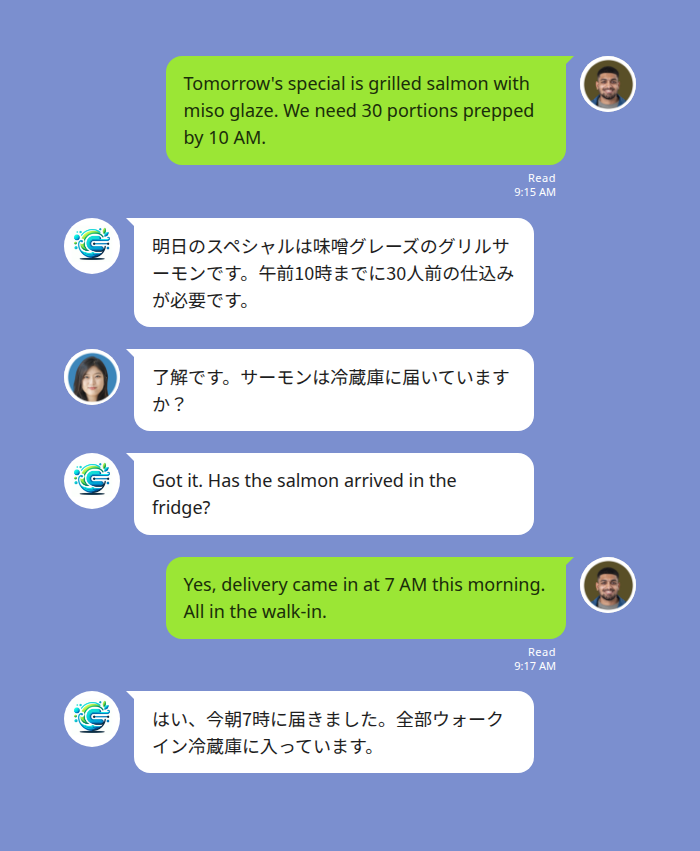
Echonora translating English and Japanese messages in real time inside a LINE group chat
Scenario: Import company with multi-country suppliers. A US procurement manager runs a LINE group with contacts at factories in Japan, Thailand, and Vietnam. Each message the manager posts in English is translated into Japanese, Thai, and Vietnamese — each flagged with the target language so everyone sees their version. When the Thai supplier replies about a shipping delay, the message is translated into English, Japanese, and Vietnamese for the rest of the group.
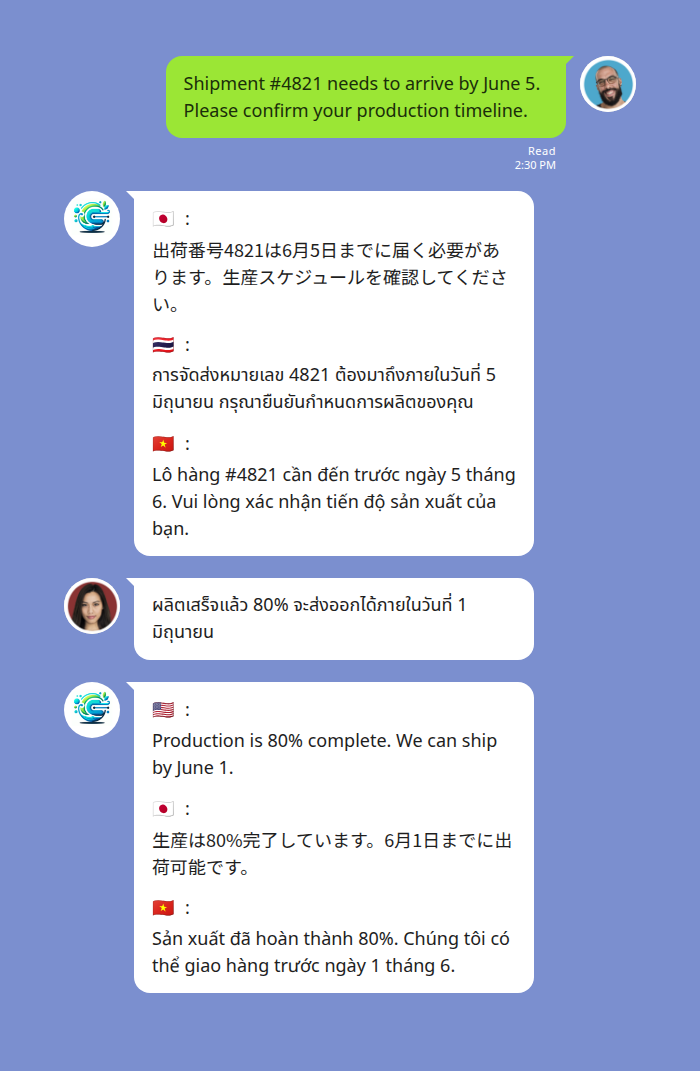
Echonora translating one English message into Japanese, Thai, and Vietnamese for a multi-country supply chain group
Echonora pricing:
- Free plan: 20 messages per day, no credit card, no expiry — enough to evaluate on your own team first
- Monthly: $10/month for unlimited translation across all your LINE groups
- Annual: $100/year (about $8.33/month)
One subscription covers every LINE group the subscriber is a member of. If one person in a 15-person group has a paid plan, the entire group gets unlimited translation.
For a detailed comparison of translation tools available on LINE, see our LINE translation bot guide. If your primary use case is team coordination, our guide to LINE translation for workplace teams covers common enterprise scenarios.
Start Using Echonora — Break Language Barriers
Supports 180+ languages. Real-time translation inside your LINE group chats.
LINE OA vs WhatsApp Business vs WeChat Work
US businesses that communicate across borders often evaluate multiple messaging platforms. Here is how LINE OA compares to the two most common alternatives.
| Feature | LINE Official Account | WhatsApp Business | WeChat Work |
|---|---|---|---|
| Strongest in | Japan, Taiwan, Thailand, Indonesia | India, Brazil, Europe, Latin America | China, Chinese diaspora |
| Group chat translation | Yes, via Echonora (180+ languages, real-time in-chat) | No native solution; per-user private translation only | No native solution |
| Broadcast messaging | Free tier (200/mo) + paid tiers | Requires pre-approved templates | Enterprise-only |
| Rich menu / persistent UI | Yes | No | Yes |
| Chatbot / auto-reply | Built-in + API | API only (via BSP) | API only |
| Free tier | Yes | Yes (basic) | No |
| API access | LINE Messaging API (free) | WhatsApp Business API (paid, via BSP) | WeChat Work API (enterprise license) |
When to use LINE OA: Your customers, suppliers, or staff are in Japan, Taiwan, Thailand, or Southeast Asia. LINE is the default messaging app in these markets — if you are not on LINE, you are not reaching them.
When to use WhatsApp Business: Your contacts are in India, Brazil, Europe, or Latin America. WhatsApp dominates these regions.
When to use WeChat Work: Your contacts are in mainland China. WeChat is effectively the only option for Chinese business communication.
The multilingual advantage. LINE is the only platform where you can add a real-time translation bot (Echonora) that translates every group message in-thread for all participants. WhatsApp offers per-user private translation, but that only helps individual readers — it does not make the full conversation visible to everyone in their language. For cross-border team coordination where everyone needs to follow the same thread, LINE plus Echonora is the most practical solution.
Best Practices for US Businesses on LINE
Start with a clear use case. LINE OA works best when you have a defined audience already on LINE — staff, suppliers, or customers in Asia. Do not create a LINE OA expecting US-based customers to adopt it. Meet your audience where they are.
Use rich menus from day one. A rich menu turns your LINE OA from a chat window into a mini-app. Link to your most important pages: hours, location, order form, FAQ, contact. This reduces the support load and gives followers instant access to what they need.
Set up auto-replies for common questions. Configure keyword-triggered responses for frequently asked questions (business hours, return policy, menu, etc.) so your team is not manually answering the same questions repeatedly.
Add Echonora for multilingual groups. If your LINE groups include people who speak different languages, add Echonora and activate translation. It takes 30 seconds and eliminates the friction of manual translation.
Promote your friend-add link everywhere. Put your LINE OA friend-add link on your website footer, email signature, business cards, and any communication that goes to your Asian contacts. The easier it is to add you, the faster your network grows.
Monitor the analytics dashboard. Check follower growth and broadcast engagement monthly. If a broadcast gets low engagement, adjust the content or timing. The data is there — use it.
Frequently Asked Questions
Is a LINE Official Account free? Yes. Creating a LINE Official Account is free, and the free plan includes 200 broadcast messages per month plus unlimited 1:1 and group chat messaging. Paid plans are available for higher broadcast volumes.
Can I use a LINE Official Account from the US? Yes. LINE Official Accounts can be created and managed from anywhere. The LINE OA Manager is a web-based tool accessible from any browser, and the LINE Official Account mobile app is available on both iOS and Android.
What is the difference between a LINE Official Account and a personal LINE account? A personal LINE account is for individual use. A LINE Official Account is a business profile with tools for broadcast messaging, rich menus, auto-replies, chatbot integration, analytics, and API access. Multiple team members can manage one LINE OA.
Can I add a LINE Official Account to a group chat? Yes. You can invite your LINE OA into any LINE group. This is commonly used for team coordination, supplier communication, and customer support groups.
How do I get a Premium ID for my LINE Official Account? A Premium ID lets you choose a custom @username instead of the random ID LINE assigns. Premium IDs are available for a monthly fee through the LINE OA Manager. This is optional and primarily useful for branding and searchability.
Does LINE OA work with chatbots? Yes. The LINE Messaging API allows you to connect any chatbot platform to your LINE OA. Businesses use this for automated customer service, booking, order tracking, and more.
How do I translate messages in a LINE group?
Add Echonora to your LINE group and type @Echonora english and japanese (replace with your languages). Echonora translates every message in real time, supporting 180+ languages and up to 5 languages per group. The free plan gives you 20 translations per day with no credit card required.
Start Using Echonora — Break Language Barriers
Supports 180+ languages. Real-time translation inside your LINE group chats.