

How to Set Up a LINE Official Account for Your Restaurant in 2026
Published
Why Restaurants Are Setting Up LINE Official Accounts in 2026
If your restaurant serves Japanese, Korean, Taiwanese, or Thai customers — or if you have inbound tourists from Asia walking past your door — a LINE Official Account is one of the lowest-friction ways to give them a channel to talk to you. In 2026, LINE has roughly 200 million monthly active users across Japan, Taiwan, Thailand, and Indonesia, and those visitors don’t think to download a US-only restaurant app. They already have LINE on their phone, and adding your restaurant takes about three seconds.
A LINE Official Account turns your restaurant into a contact your customers can message directly: reservation enquiries, hours questions, “do you have vegan options,” and post-meal feedback all land in one inbox. You can also broadcast lunch specials, weekend brunch availability, or a Friday-night reminder to everyone who has added you.
This guide walks through the exact setup steps for a restaurant in 2026 — what you need before you start, the LINE for Business signup flow, how to configure your profile, and how to add multilingual translation so your Spanish-speaking kitchen and English-speaking floor staff can run the same chat thread.
If you want the broader picture on what a LINE Official Account is and how it compares to other business messaging tools, read the parent guide first: LINE Official Account — the complete guide for US businesses.
What You Need Before You Start
Five things, all of which most restaurants already have:
- A business email address — Gmail, Outlook, or your restaurant’s domain works.
- A LINE account — personal LINE account on your phone is fine to start. (You’ll create the business account separately during signup.)
- Your restaurant’s basic details — name, address, phone, hours, a one-paragraph description.
- A profile photo or logo — 640×640 px PNG or JPG, under 3 MB.
- About 30 minutes — that’s the realistic time for a first-time setup if you follow the steps below.
You don’t need a verified business badge to start. The unverified “regular” account is free, supports all the core features (messaging, broadcasts, QR code, basic analytics), and lets you accept the first 200 messages per month at no cost. You can apply for the green verified badge later once your account is live.
Step-by-Step: Create Your Restaurant’s LINE Official Account
Step 1 — Sign up at LINE for Business
Open LINE for Business in your browser and click “Create an account.” You’ll be prompted to sign in with your personal LINE account or with email. Either path works — your personal account stays separate from the business account; the personal one is just used to authenticate.
Pick “Create a new LINE Official Account” and fill in:
- Account name — your restaurant’s name as customers see it (“Sakura Ramen,” not “Sakura Ramen LLC”).
- Email — the admin email for your account.
- Country/region — where the restaurant operates.
- Industry — pick “Food & Restaurant.”
- Company / business name — your legal entity, used for billing if you upgrade later.
Step 2 — Set your profile basics
After signup, you land in the LINE Official Account Manager. The first thing to set is your public-facing profile:
- Profile photo — your logo or a sharp photo of the restaurant front. This shows up next to every message.
- Cover image — 1080×878 px landscape. Use a clean shot of your signature dish or interior.
- Status message — 20 characters max. Something like “Authentic ramen in Brooklyn 🍜” or “Open Tue–Sun, 5pm til late.”
- Bio / description — 500 characters max. Cover the cuisine, neighborhood, opening hours, and reservation policy.
Step 3 — Add location, hours, and contact info
In the Manager, go to Settings → Account settings → Business information. Enter your address (this enables LINE’s map view for customers), phone, opening hours, and any closed days. Restaurants that fill these fields out completely get noticeably more reservation messages, because LINE surfaces business info on the account page below your name.
Step 4 — Configure your greeting message
The greeting is what every new friend sees the moment they add you. Go to Home → Messages → Greeting message and write something short and useful — not a marketing blast. Three lines work well:
- A welcome line (“Thanks for adding [Restaurant] — glad you’re here.”)
- A practical line (“We’re open Tue–Sun, 5–11pm. Reservations: just reply with date, time, and party size.”)
- An optional perk (“First-time visitor? Show this chat at the host stand for a free starter.”)
Step 5 — Generate your QR code and friend-add link
In the Manager, click Gain friends → Friend’s icon. LINE generates a QR code and a `lin.ee/…` short link unique to your account. Download the QR as a high-resolution PNG. Print it for the front counter, the bottom of menus, the back of business cards, and the receipt footer. Add the short link to your Google Business Profile, your Instagram bio, and your website’s contact page.
Once these five steps are done, your LINE Official Account is live and ready to receive its first customer message.
Set Up Multilingual Customer Service with Echonora
Most US restaurants run multilingual whether they planned to or not. The dining room speaks English, the kitchen often speaks Spanish, and inbound customers from Japan, Taiwan, or Korea reach out in their own language. If your LINE Official Account’s only channel is “owner replies in English,” the language gap becomes your bottleneck.
This is what Echonora solves. Echonora is a translation bot that lives inside any LINE group chat. You add it to a group with your staff and your Official Account, and it auto-translates every message between the configured languages. The customer writes in Japanese, your floor staff reads it in English. The line cook replies in Spanish, the manager reads it in English. Nobody installs an app, nobody copies anything.
Setting it up takes one minute:
- Tap add.echonora.com on your phone — this opens LINE to the friend-add screen for @echonora.
- Create a LINE group with your front-of-house staff and invite @echonora into it.
- Type the activation command in the group, for example:
@Echonora english and japanese. - The bot confirms in the same language you used.
Echonora supports 180+ languages and 2 to 5 languages per group. For US restaurants the common pairs are English + Japanese (inbound tourists, Japanese-American customers), English + Spanish (kitchen and FOH coordination), and English + Korean / Mandarin / Vietnamese / Thai (depending on your customer base). For the full list of supported languages and every accepted command form, see the supported languages and activation syntax reference.
The free plan covers 20 translated messages per day, perpetual, no credit card. That’s enough to handle a small restaurant’s reservation traffic. The paid plan ($10/month or $100/year) lifts the cap to unlimited and is the right step once you’re running multiple groups.
Real Use Cases for Restaurants
Three patterns we see most often inside US restaurants using LINE Official Account + Echonora together:
1. Inbound reservation enquiries from international customers. A Japanese tourist scans your QR code at the host stand on the way out, adds your restaurant on LINE, and a week later messages you to book a table for the next trip. The message lands in Japanese; the bot translates to English for your floor manager.
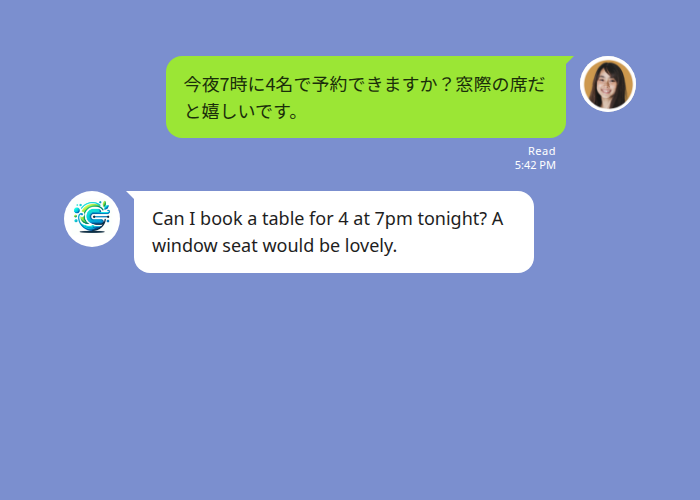
A Japanese-speaking customer messages the restaurant on LINE — Echonora translates the reservation request into English for the floor team.
2. Back-of-house coordination across the language gap. A separate LINE group connects the line cooks, prep team, and the manager. The kitchen writes in Spanish, the manager reads in English. Stock-outs, ticket clarifications, and shift-change handoffs all flow in one thread.
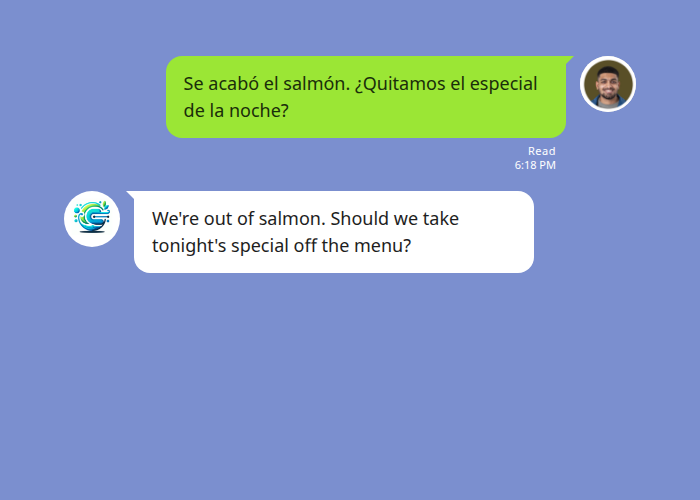
The kitchen writes in Spanish, the manager reads in English — same thread, same chat, no app-switching.
3. Broadcast specials and brunch reminders. Once you’ve built a friend list of regular customers, LINE’s broadcast feature pushes a single message to everyone who has added you. Friday-night reservations dropping? Send a 4pm broadcast about tonight’s chef’s special. The free LINE OA plan includes 200 broadcast messages per month before paid tiers kick in.
Common Pitfalls and How to Avoid Them
Setting it up but never telling customers. The biggest single mistake is creating the account and then leaving the QR code in a folder on someone’s laptop. Print it. Put it on the menu. Add the friend-add link to your Google Business Profile.
Treating it like email and replying once a day. LINE customers expect a chat-style reply window — minutes to an hour, not 24 hours. If you can’t watch the inbox during service, set the auto-reply message to manage expectations (“We reply 11am–10pm — thanks for your patience”).
Sending too many broadcasts. One or two broadcasts a week is the right cadence. Daily broadcasts make customers block the account, which is permanent.
Not setting up translation early. The longer you go monolingual, the harder it is to retroactively figure out which messages from your Japanese or Korean customers you missed. Set up Echonora in the same week you set up the LINE OA.
FAQ
How much does a LINE Official Account cost? The basic account is free and includes 200 messages per month. The paid plans start at around $5/month for higher message volumes. For most independent restaurants the free tier covers months one through six comfortably.
Do my customers need to be in Japan or Asia to use it? No — LINE works globally. A customer in the US, UK, or anywhere else can install LINE and add your restaurant. The user base just skews more heavily Japanese/Taiwanese/Thai by default.
Can I link my LINE Official Account to my reservation system (OpenTable, Resy, etc.)? LINE doesn’t natively integrate with most US reservation systems out of the box. The lightweight approach is to handle reservations as conversational chat (“Sat 7pm, 2 people, confirmed — see you then”) and log them in your POS or reservation tool manually. Higher-volume restaurants can use LINE’s API for custom integration.
Is there a desktop version? Yes. LINE Official Account Manager runs in any web browser at manager.line.biz — handy when you want one person at the host stand on a laptop watching the inbox during service.
What about privacy? Messages between your customers and your Official Account are handled by LINE’s standard messaging infrastructure. Echonora translation happens on Echonora’s servers and is processed to deliver the translation only. See the privacy policy for full data-handling details.
Start Using Echonora — Break Language Barriers
Supports 180+ languages, real-time text and voice translation inside any LINE group.
Next Steps
Once your LINE Official Account is live and Echonora is running in your staff groups, the next things worth setting up are: a templated reply for the most common reservation question (“How many people, what time, what date?”), a weekly broadcast slot on your calendar so it doesn’t slip, and a 30-day check-in to look at which broadcasts got the most clicks. For the broader picture of LINE Official Account features beyond restaurants, head back to the parent guide: LINE Official Account — the complete guide for US businesses.
Ready to translate your restaurant’s LINE chat?
Free plan: 20 messages a day, perpetual, no credit card. Add Echonora once and translation is live in every group it’s in.