

LINE Voice Message Translation: How to Read One You Can't Understand
Published
A voice message arrives in LINE. You can see it is fourteen seconds long, you can see who sent it, and you can play it as many times as you like — but it is in Japanese, or Thai, or Chinese, and none of that helps. There is no text to select, nothing to copy, and no obvious way to find out whether it says the delivery is late or please call me back today.
This guide is for that moment: how to turn a voice message you cannot understand into text you can read, what the result will and will not tell you, and how to answer so the other person understands you back.
Why a voice message is the hardest thing to translate
Text you can at least paste somewhere. Audio gives you nothing to grab, and that is only the first problem.
- There is nothing to copy. A translator app needs text as input. A voice message is a sound file, so the usual copy-paste route does not start. Screenshotting the chat does not help either — the words are not written down anywhere on screen.
- Real speech is messy. People recording a quick voice note talk faster than they write, run words together, trail off, and correct themselves halfway through a sentence. Written language is tidied up before it is sent; speech is not.
- Background noise competes with the speaker. Voice messages get recorded in the places people actually are — a factory floor, a street, a car, a busy kitchen. Anything the microphone picks up alongside the voice makes the words harder to make out.
- Accents and regional speech vary. The same language sounds different depending on where the speaker grew up. A strong regional accent, or a dialect word, is harder to pin down than the standard form.
- Tone carries meaning that text drops. Whether something was said warmly, urgently, or as a joke lives in the delivery. Once it becomes written text, that layer is gone, and a short blunt sentence can read colder than it sounded.
None of this makes voice translation useless. It does mean a voice message is a harder starting point than a typed one, and it is worth knowing which parts of the result to lean on and which to double-check.
What LINE does with voice messages on its own
Very little, as far as translation goes. LINE does not translate the messages in your chats automatically — not text, and not audio.
What LINE offers instead are official translator accounts: bot accounts you can invite into a chat, each fixed to a single language pair, that translate when asked. They work on text. A voice message is not something you can hand to them.
So if you want a voice message turned into something readable, you need a bot in the group that handles audio as well as text. For the wider picture of what LINE does and does not translate by itself, see does LINE have a translator.
How to get a LINE voice message translated
A translation bot is invited into the group once and then works on its own, on every message that arrives afterwards. Three steps:
- Add the bot as a LINE friend.
- Open the group the voice messages are arriving in, and invite the bot into it.
- Send the language command in that group.
@Echonora english and japanesesets those two languages to translate to each other from that point on.
From then on, a voice message in either language is transcribed first and then translated, and the result is posted into the group as text.
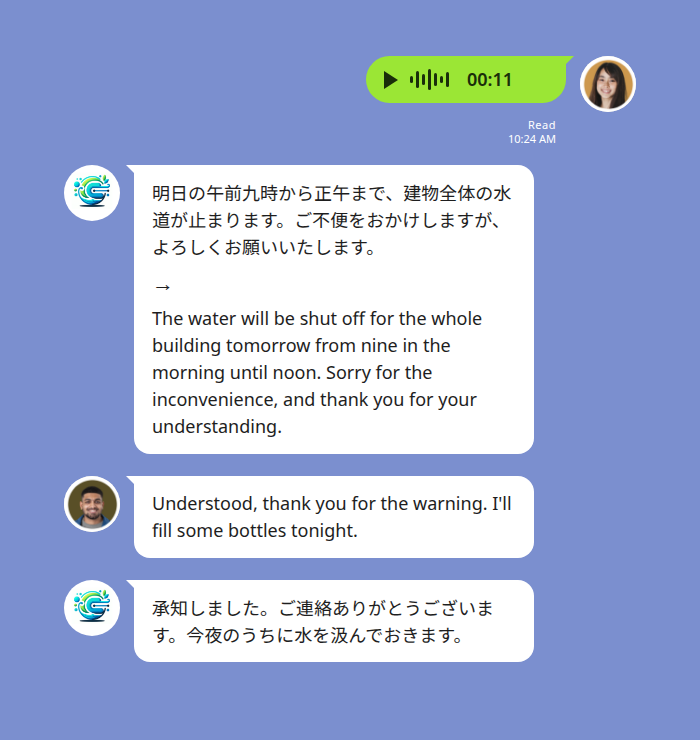
Two things to know before you rely on this:
- It works in group chats, not one-to-one with the bot. Messaging the bot directly will not translate a conversation, so the invite step is not optional. If you are the only person who needs it, that still works — put the bot in a group by itself and it translates there.
- The language command is sent once. You do not re-send it per message. If a third language joins later, add it the same way —
@Echonora english and japanese and thai— up to five languages in one group.
Check that both languages you need are covered on the supported language list before you set anything up.
What comes back, exactly
This is the part worth being precise about, because it sets your expectations correctly.
- You get two lines: the transcript, then the translation. The transcript is what the speaker actually said, written out in their own language. The translation is that same content in yours. Both are useful — if a translation reads oddly, the transcript above it often shows why.
- The answer is always text. The bot writes; it does not send you audio. There is no recording to play back and nothing to listen to. Everything the bot produces, you read.
- The original voice message stays where it was. It is not replaced, deleted, or moved. It sits in the thread as LINE always kept it, and you can play it again whenever you want — useful when you want to hear the tone for yourself after reading what was said.
- It takes a moment. Transcribing and then translating is two steps, so the text usually appears a few seconds after the voice message does, rather than at the same time.
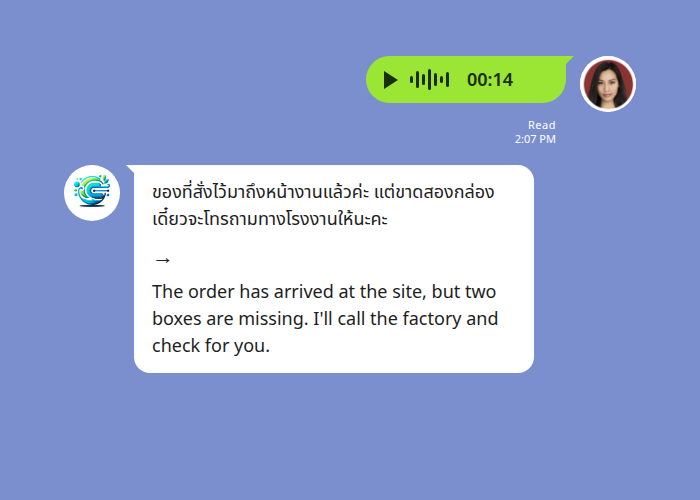
Replying so they understand you
Reading the message is half of it. The reply is the other half, and it is the simpler half: you type in your own language, and it is posted to the group in theirs. Nothing extra to do — the group is already set up, so your message is handled the same way theirs was.
You can also answer with a voice message of your own. It is treated exactly like an incoming one: transcribed, translated, and posted as text for the other person to read. If you are more comfortable speaking than typing in a hurry, that route is open in both directions.
Start Using Echonora — Break Language Barriers
The honest limits
Worth knowing up front, so nothing catches you out:
- It handles LINE voice messages, not calls. A voice message is a recording someone sends. A live LINE call is not covered — there is no running translation of a conversation while it happens, and no subtitles on a video call.
- Audio quality sets the ceiling. A voice note recorded close to the microphone in a quiet room transcribes more cleanly than one shouted across a workshop. If a message really matters and the recording was rough, ask for the key part again in text.
- Stickers, images, and files are not translated. Text inside a screenshot or a photo cannot be read either. If it matters, it needs to be sent as text or said out loud.
- It is not a formal interpreter. For anything legal or medical where a misunderstanding is expensive, use a professional. This is for everyday conversation.
- Confirm the things that are expensive to get wrong. Numbers, dates, addresses, and quantities are worth reading back in a short plain sentence and having confirmed, whatever the source was.
Briefly: sending and saving a voice message in LINE
If you came here for the other half of the topic — recording one rather than reading one — it is quick. In a chat, press and hold the microphone icon, speak, and release to send; slide away before releasing to cancel. To keep one, press and hold the message bubble and choose to save it, which stores the audio file to your device. Saved and re-sent voice messages behave the same way in a translated group: they are transcribed and translated like any other.
Quick reference
| What you want | What to use |
|---|---|
| A voice message in another language turned into readable text | A translation bot in the group — transcribed, then translated |
| The original audio kept | Kept automatically — the voice message stays in the thread |
| The translation as audio to listen to | Not available — everything comes back as text |
| To reply in your own language | Type normally; it is posted in their language too |
| A live LINE call translated | Not supported — voice messages only |
| Text inside a screenshot or photo | Not supported — send it as text |
| A third language in the same conversation | Add it to the command — up to five languages per group |
Before you rely on it
Set the group up once, send the @Echonora english and japanese command with the languages you actually need, then have someone send a real voice message so you can see how it lands before anything important depends on it. Voice is the harder input, and a minute spent checking a low-stakes message tells you far more than reading about it will.
If your problem turns out to be something else — LINE’s own menus appearing in a language you never chose — that is a separate setting, covered in why LINE shows the wrong language.