

How to Change the LINE App Language on iPhone and Android
Published
If you have gone looking through LINE’s settings for a language option, you have not missed it — there isn’t one. LINE takes its interface language from your phone, so the change is made in your iOS or Android settings rather than inside the app.
That answers half the question. The half that brings most people here is the other one: changing LINE’s language does not translate anybody’s messages. Those are two separate settings, and this guide covers both.
Where LINE’s language actually comes from
LINE’s menus, buttons, setting labels and push notifications all render in whatever language your device is set to. Unlike some messaging apps, LINE offers no independent language picker of its own.
That used to mean an all-or-nothing choice: switch your whole phone to Japanese to read LINE in Japanese, and get every other app in Japanese too. Both iOS and Android have since added a per-app language setting, which is almost always the one you want — LINE in one language, the rest of your phone in another.
Change the LINE app language on iPhone
You will need at least two languages added to your phone before the per-app option appears.
- Open Settings — your iPhone’s system Settings, not LINE’s.
- Tap General → Language & Region → Add Language and add the language you want, if it isn’t there already. Keep your preferred phone language at the top of the list.
- Go back to the main Settings screen and find LINE. On newer versions of iOS it sits under Apps → LINE.
- Tap Language.
- Choose your language.
LINE reopens in the language you picked. Your phone’s own language is untouched.
If there is no Language row under LINE, it is because only one language is added to the phone — step 2 is what makes the row appear.
Change the LINE app language on Android
On Android 13 and later:
- Open Settings.
- Tap Apps → LINE → Language. On Samsung devices the same setting lives under General management → App languages → LINE.
- Choose your language.
On Android 12 and earlier there is no per-app language, so LINE follows the system language:
- Open Settings.
- Tap System → Languages & input → Languages.
- Add your language and drag it to the top of the list.
This changes every app on the phone, not just LINE — which is the reason the per-app setting was added.
What changing the display language does not do
This is where the two settings get confused, so it is worth being blunt about it:
- It does not translate messages people send you. Their words arrive exactly as they typed them.
- It does not change what anyone else sees. Your language choice is local to your phone.
- It does not change your LINE account, your region, or your phone number.
The menus change. The conversation does not.
Translating messages is a different setting
If what you actually wanted was to read messages in your own language, there are two routes, and they behave quite differently.
LINE’s own translation works one message at a time, on request. LINE also runs official translator accounts you can invite to a chat, but each one is locked to a single fixed language pair — English and Chinese, say. Fine for two languages, not enough once a third joins the conversation.
A translation bot is invited into the group once and then translates every message as it arrives, in both directions. You choose the language combination yourself and can change it later.
The setup is short:
- Add the bot as a LINE friend.
- Open the group you want translated and invite the bot into it.
- Send the language command in that group.
@Echonora english and vietnamesesets English and Vietnamese to translate to each other from that point on.
Add more languages the same way — @Echonora english and vietnamese and indonesian — up to the per-group limit. You send the command once; it keeps working in that group afterwards.
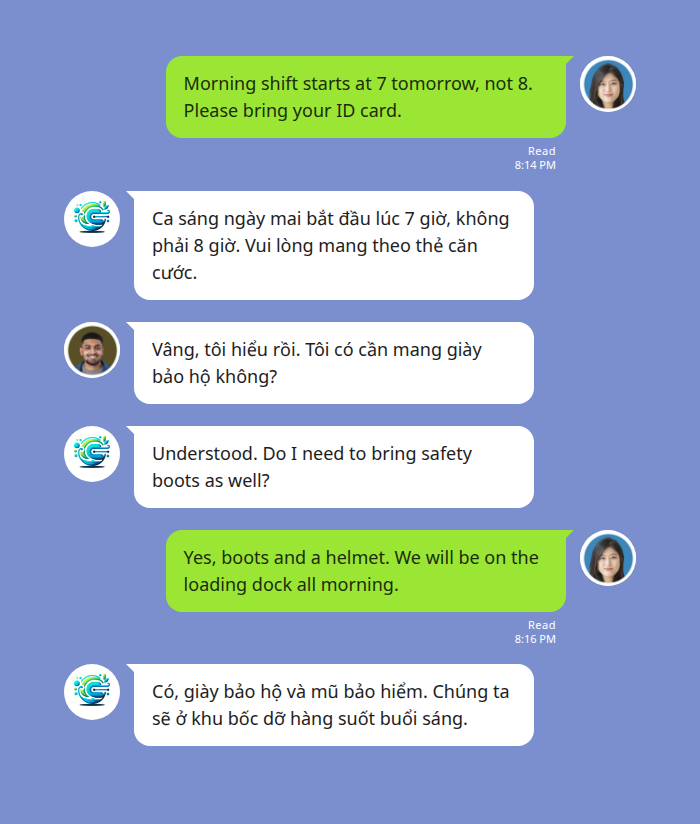
A few things worth knowing before you set it up:
- Group chats only. Messaging the bot one-to-one will not translate anything, so the invite step is not optional.
- Voice messages are covered. A LINE voice message is transcribed first, then translated, and the result appears as text. The original voice note stays in the thread.
- Stickers, images and files are not translated, and text inside a screenshot cannot be read. Send it as text instead.
- Check your language is covered in the supported language list.
Which setting do you actually need
| What you want | What to change |
|---|---|
| LINE’s menus and buttons in your language | Device or per-app language, above |
| One message, occasionally, in your language | LINE’s own message translation |
| Every message in a group, both directions, automatically | A translation bot in the group |
Most people arriving at the language setting want the third row and try the first.
Start Using Echonora — Break Language Barriers
When the language still looks wrong
- Force-close LINE and reopen it. Some labels are cached from the previous language until the app restarts.
- Chat names and past messages stay as they were. Those are content, not interface — they were written in a particular language and nothing re-renders them.
- Notifications can lag behind. They may keep arriving in the old language until the next restart.
- Region is not language. LINE’s region follows the phone number the account was created with. Changing the display language does not move the account, and does not need to.
If the interface changed but the messages are still in a language you cannot read, you have changed the setting that was working correctly. The one you want is in the section above.
For the wider picture — what LINE does and does not translate on its own — see does LINE have a translator.